Copy text.
Paste a card.
Peesuto is a clipboard app for the Mac. It sees what you copied (code, a chat, a table, a quote) and pastes it as a well-set image into whatever you are typing in. GIF and video too.
Cards made by Peesuto
Each of these was pasted from plain text.
It reads what you copied.
Words, names, numbers and order come from your text. Nothing is rewritten or made up; it is only set.
func greet(_ name: String) -> String {
    "Hello, \(name)!"
}

print(greet("Peesuto"))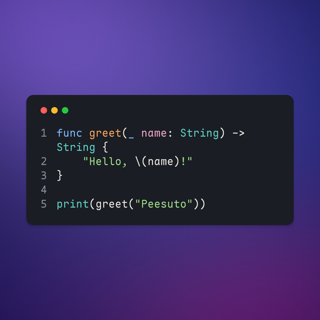
Code. 24 languages highlighted, from the fence or detected. Long lines wrap; indentation holds.
Lin: Can this chat become an image?
Ash: Yes, copy it and press the shortcut.
Lin: Nice, that's all?
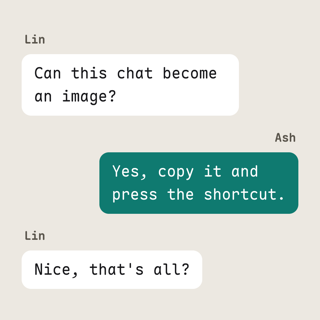
Chat. Speakers and times copied out of chat apps become bubbles or a transcript.
| Plan | Price | Seats |
|---|---|---|
| Solo | $0 | 1 |
| Team | $12 | 10 |
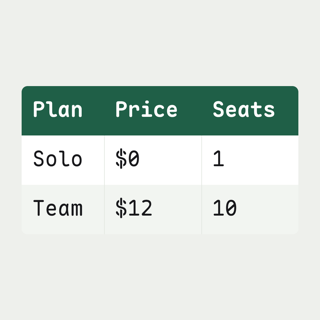
Table. Tab-separated, Markdown and terminal box tables. Columns keep whole words.
Staging account
User: admin
Password: P@ssw0rd!2026
Email: ops@example.com
Host: https://staging.example.com
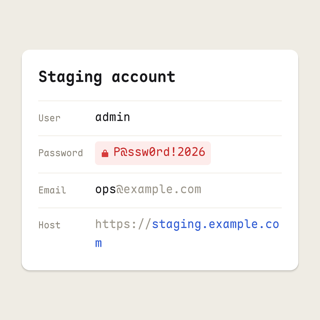
Info card. Contacts, accounts and dotenv blocks become fields. Passwords and keys are marked with a lock.
Copy → Decide → Render → Paste
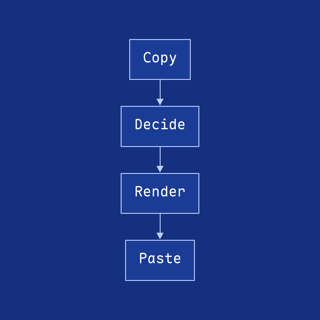
Diagram. Mermaid flowcharts and plain arrow chains, laid out and routed.
“Simplicity is the ultimate sophistication.”
— Leonardo da Vinci
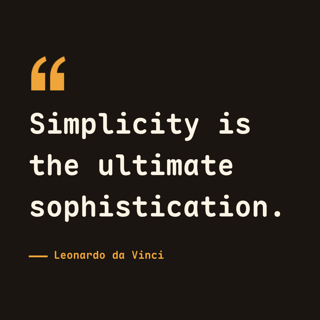
Quote. An author is shown only when your text has one.
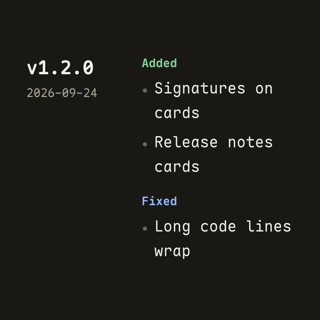
## v1.2.0 — 2026-09-24
### Added
- Signatures on cards
- Release notes cards
### Fixed
- Long code lines wrap
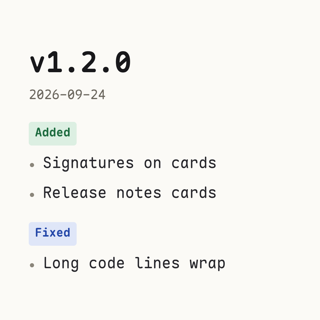
Release notes. Keep a Changelog sections, or a version line over its items, become a release card.
13 templates,
27 styles.
Local rules pick the template; you can switch the style after pasting, choose a default per template, or turn one off in Settings. Each style is an open table of type and colour: how templates work.
Text Paper
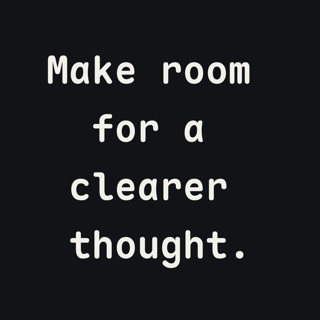
Text Ink
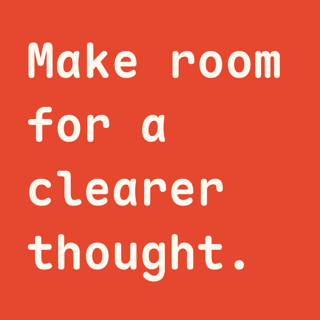
Text Poster
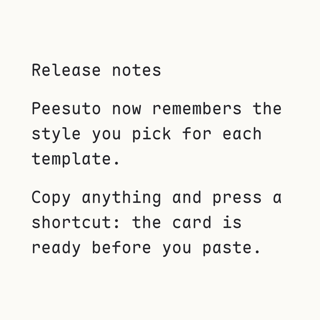
Document Reading page
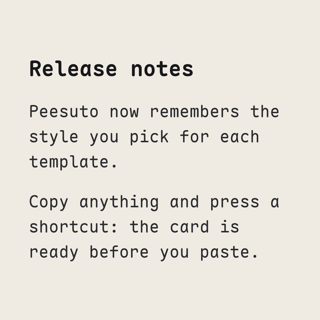
Document Editorial column
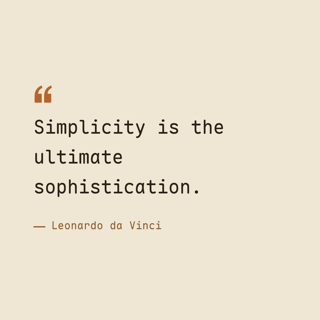
Quote Book excerpt
Quote Statement
Code Terminal
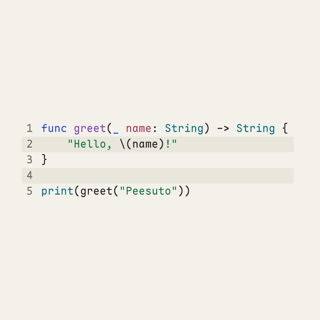
Code Code notebook
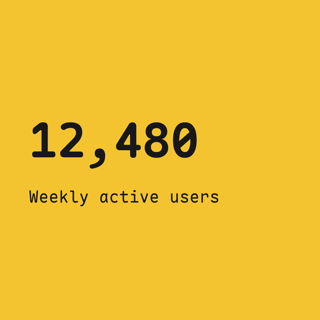
Statistic Big number
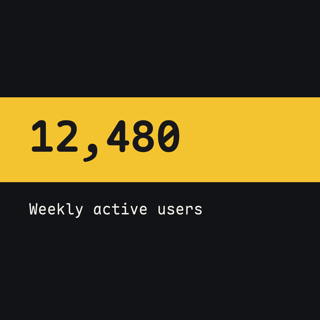
Statistic Metric strip
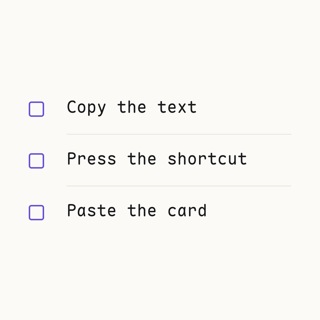
List Checklist
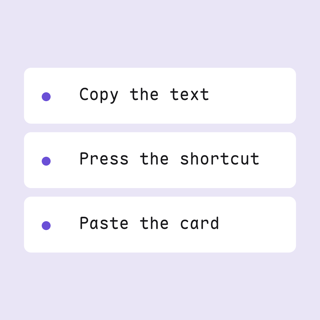
List Stacked steps
Conversation Chat bubbles
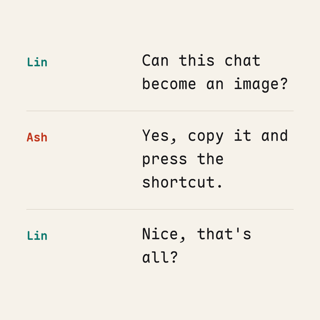
Conversation Transcript
Table Data grid
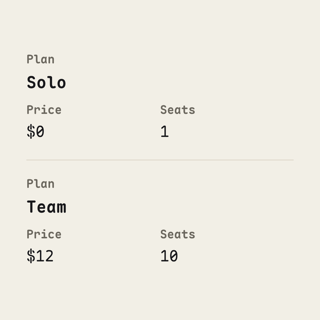
Table Editorial ledger
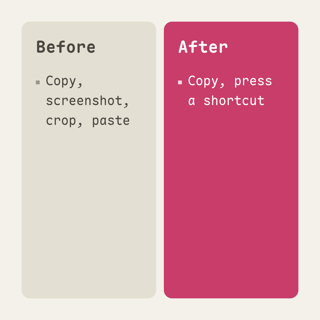
Comparison Side by side
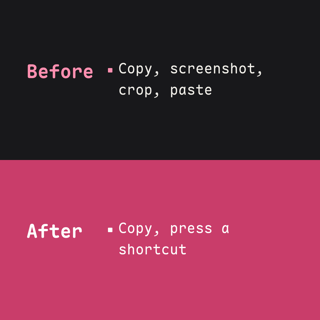
Comparison Split panels
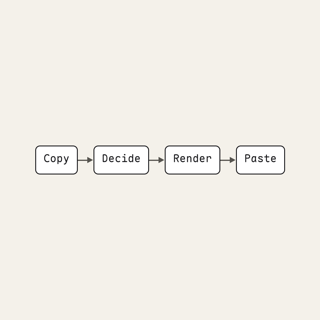
Diagram Flow
Diagram Blueprint
Info card Field list
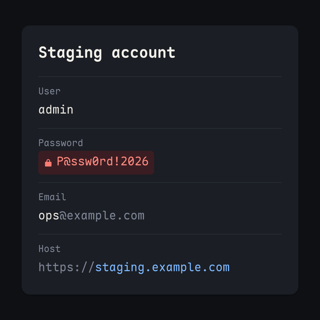
Info card Credentials
Release notes Release card
Release notes Timeline
QR code Plain

QR code Card
Two keys to remember.
Both act on what you copied last.
- ⌥V
Paste as…
A small chooser opens at your caret, with the card already drawn. One more key:
- ↩
- Image: a PNG, pasted into the app you are typing in
- G
- GIF: the same card, revealed line by line
- M
- Video: MP4, made with the ffmpeg on your Mac
- Q
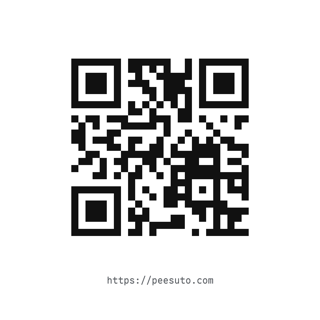
- QR code: exactly the text you copied; never sent to a model
- P
- Pin to screen: floats above every window; drag, pinch to zoom, double-click to close
- ⇧⌥V
Clipboard history
Everything you copied, encrypted on your Mac and searchable.
Image, GIF, video, QR code and pin can each get a direct shortcut in Settings › Shortcuts. They are unbound by default.
Nothing you copy leaves your Mac.
Unless you decide it should. No account, no telemetry, no analytics.
secrets redacted
AI provider
picks the style, never the words
- Rendered locally
- Parsing, layout and rendering run on your Mac. Local rules choose the template; no model needed.
- Passwords skipped
- Copies from password managers and secure fields are never recorded.
- Open source
- MIT-licensed, so you can check. Read the privacy policy.
Questions.
Why does it ask for Accessibility access?
To paste into the app you are typing in, to open the chooser at your caret, and to check that the caret is still where you left it before pasting. Without the permission, copying and history still work; the result is copied and you press ⌘V yourself.
What leaves my Mac?
By default, nothing. Only if you set up an AI provider is copied text sent, with secrets redacted first, to that provider with your key. One offline switch in Settings stops all of it. The privacy policy lists every case.
Is AI required?
No. Local rules choose a template for everything. If you like, bring your own key and let Jev, a small model, choose the template and style, through TypeSafe, Vercel AI Gateway, OpenRouter or your own Cloudflare account. It picks presentation only; it never rewrites your text.
Do I need ffmpeg?
Only for MP4 video. Peesuto uses the ffmpeg already on your Mac (brew install ffmpeg) and does not bundle or install it. Images, GIFs and QR codes need nothing extra.
Which Macs does it run on?
Macs with Apple silicon, on macOS 13 Ventura or later.
What does it cost?
Nothing. Peesuto is free and MIT-licensed, and no feature is held back from the open-source build.
How do updates work?
Peesuto checks peesuto.com/appcast.xml once a day and offers signed updates (Sparkle); you can turn the check off in Settings › General. Versions 0.1.0 and 0.1.1 came before the updater, so update those once by hand. The changelog lists what changed.